


With Kaamfu 2.1, we’re introducing our first built-in AI assistant, faster ways to understand what your team is working on, and new appearance controls so every user can make Kaamfu feel like their own workspace. This release focuses on helping managers stay informed without chasing updates, improving visibility at key moments, and making the platform easier to work in throughout the day.
Kai, updates to the universal menu, improvements to Workstation Connect, and new themes come together to make Kaamfu more intelligent, more visual, and more personal.
Kai: Your AI Assistant Inside Kaamfu
Kai is now available across Kaamfu as an assistant you can chat with directly. Managers can use Kai to catch up on team activity, understand progress, and surface blockers by asking questions in natural language. Instead of digging through boards, conversations, and logs, Kai provides concise, contextual answers based on real work happening inside Kaamfu.
AI-powered Story and Alignment Score
Right-clicking a member’s avatar now opens an extended pane that defaults to Story view. This is a live, AI-generated narrative of the member’s last hour of work. Alongside the story, Kaamfu shows an alignment score calculated from multiple activity and work signals, helping you quickly understand how a worker’s activity aligns with expectations.
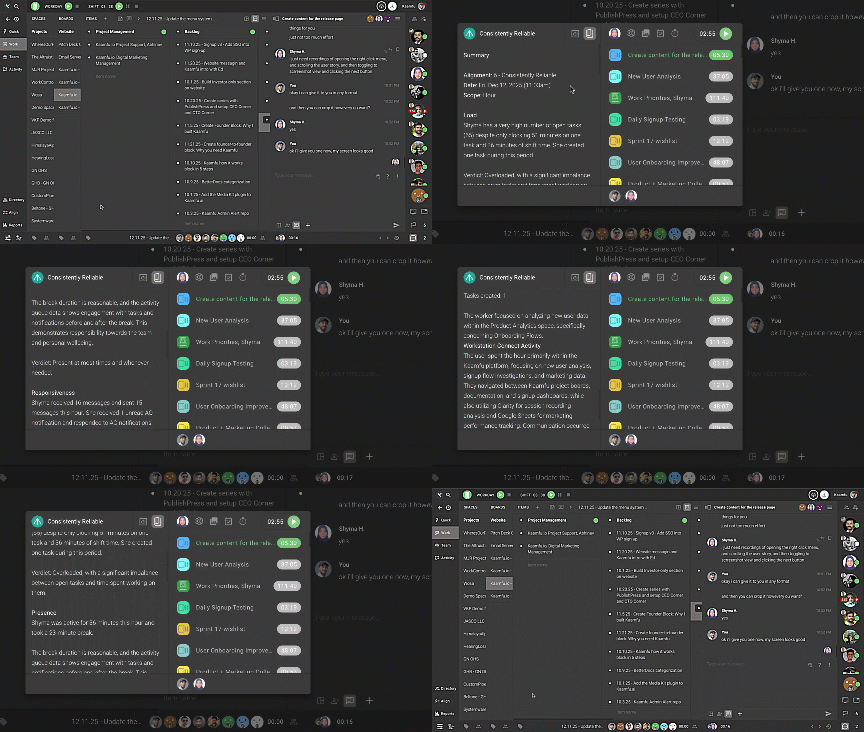
The Story view includes:
- Load: current open tasks
- Presence: breaks taken and availability
- Responsiveness: notifications received and response time to attention requests
- Task overview: tasks worked on in the last hour, with a short summary
Try it by right-clicking a member’s Avatar from the Workline/status panel on the right sidebar, inside a conversation, or from the Team panel. The Story View opens in the extended pane, where you can scroll through each section to review the past hour.
Screenshot Carousel and AI Analysis
The extended pane in the member’s right-click menu also includes a Screenshot View that shows a carousel of screenshots captured since the beginning of the day. Each screenshot includes an AI-generated analysis explaining what’s happening on the screen, along with the time the screenshot was captured.
When you scroll through the screenshots, the analysis updates below the image so you can follow changes over time without leaving your current context.
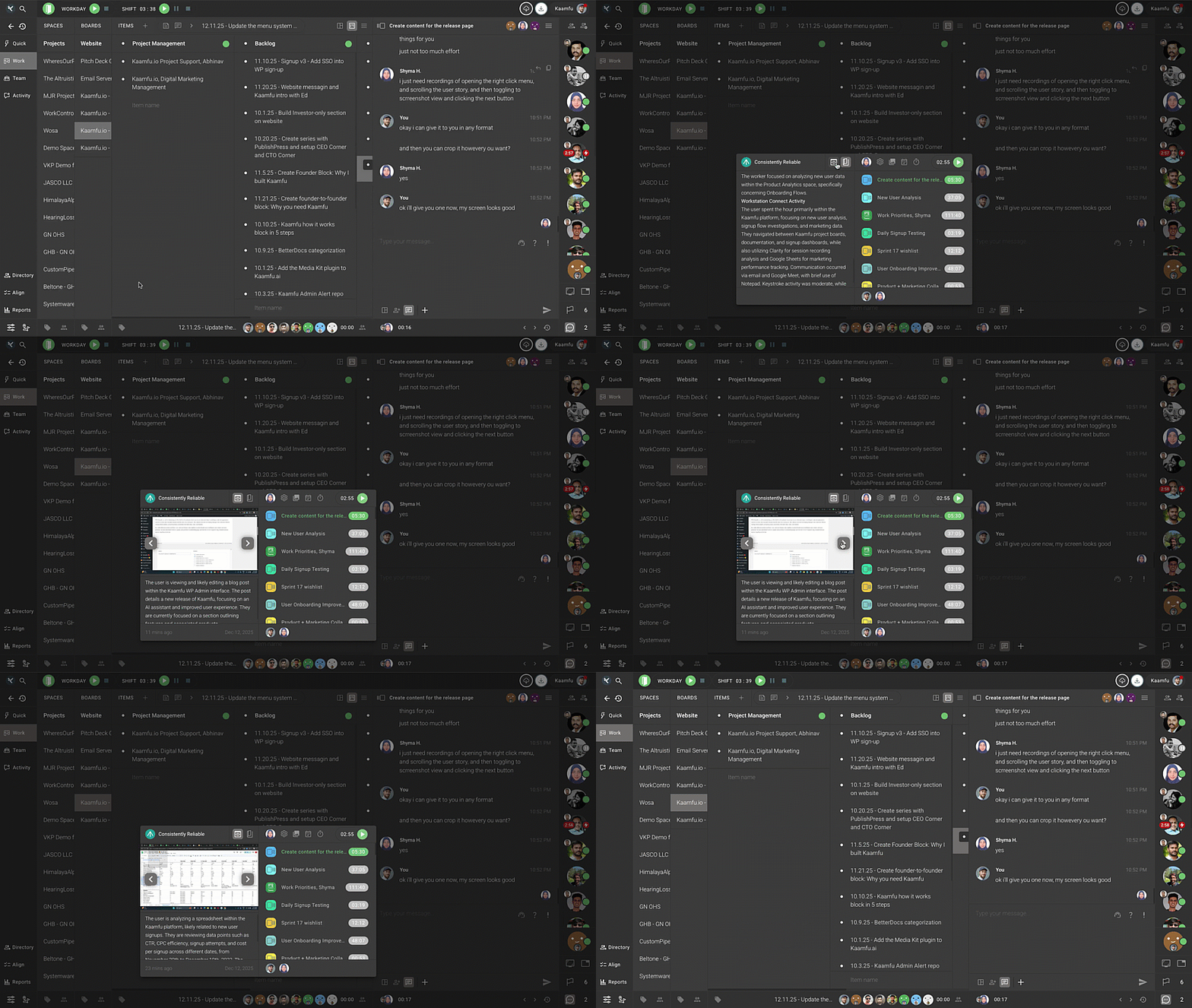
Try it by right-clicking a member’s avatar, switching to Screenshot from the header of the extended pane, browsing through the screenshots, and scrolling through the analysis for each capture.
Themes and Appearance Controls
Kaamfu now supports six themes, giving every user more control over how the workspace looks and feels. Each theme can be customized so colors better match personal preferences or working environments.
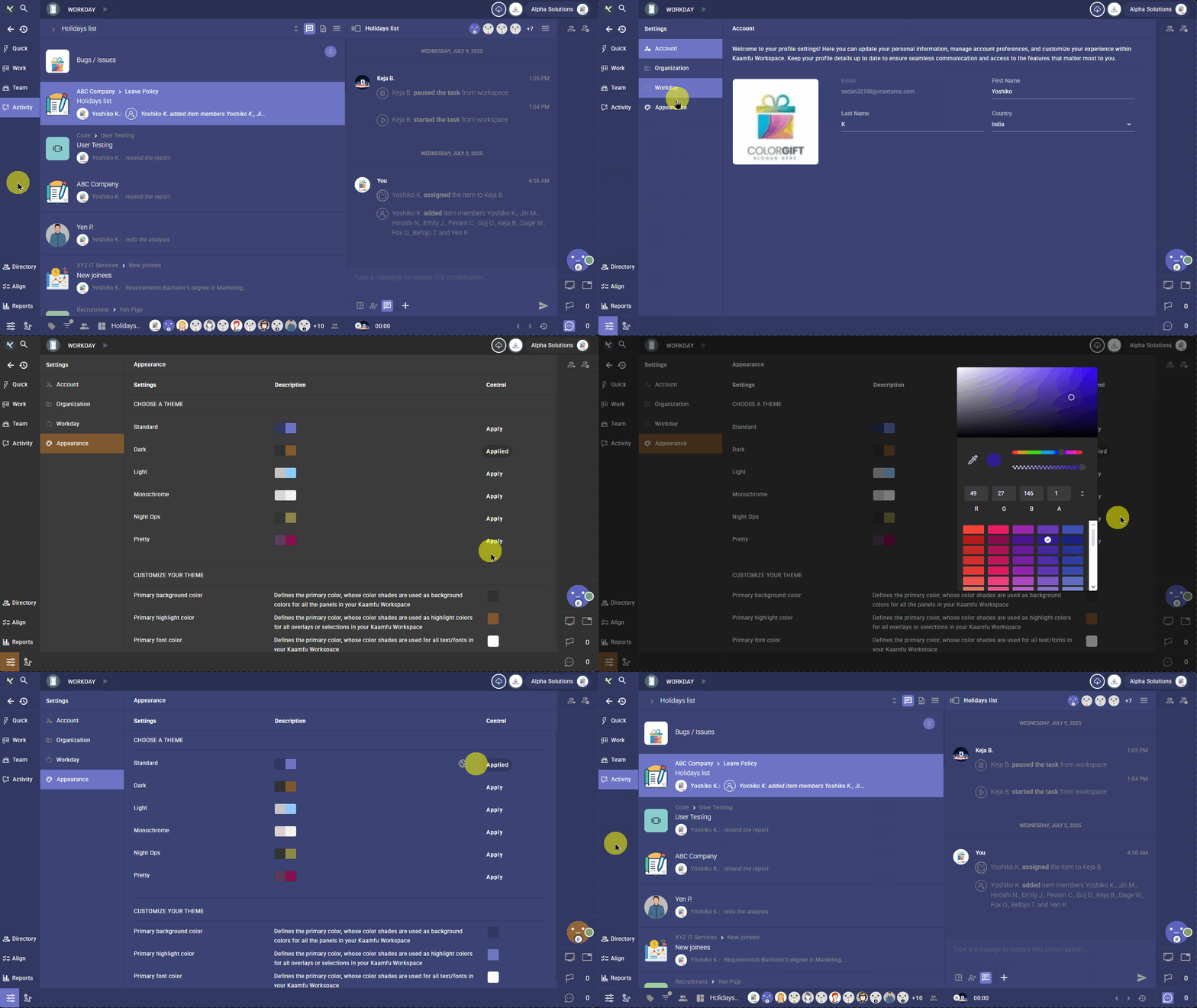
To change the them, click Settings in the bottom-left, open Appearance, and select Apply on the theme you want to use. To customize the theme, use the controls at the bottom of the page to adjust background, highlight, and font colors.
URL Capture through Workstation Connect
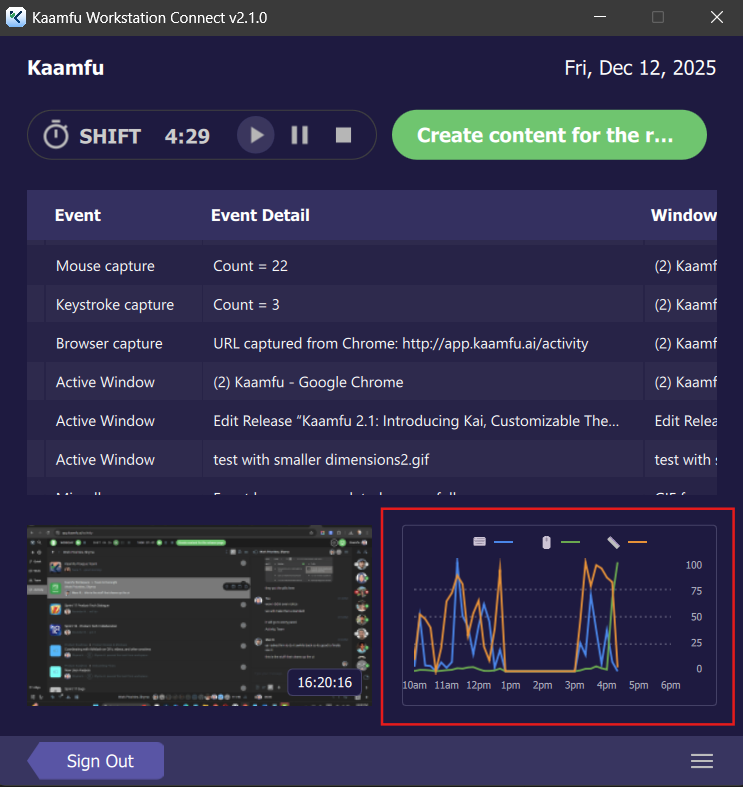
Kaamfu Workstation Connect now captures the URL when a worker is active in a browser. The event appears as Browser Capture, and the details show which browser was used along with the captured URL.
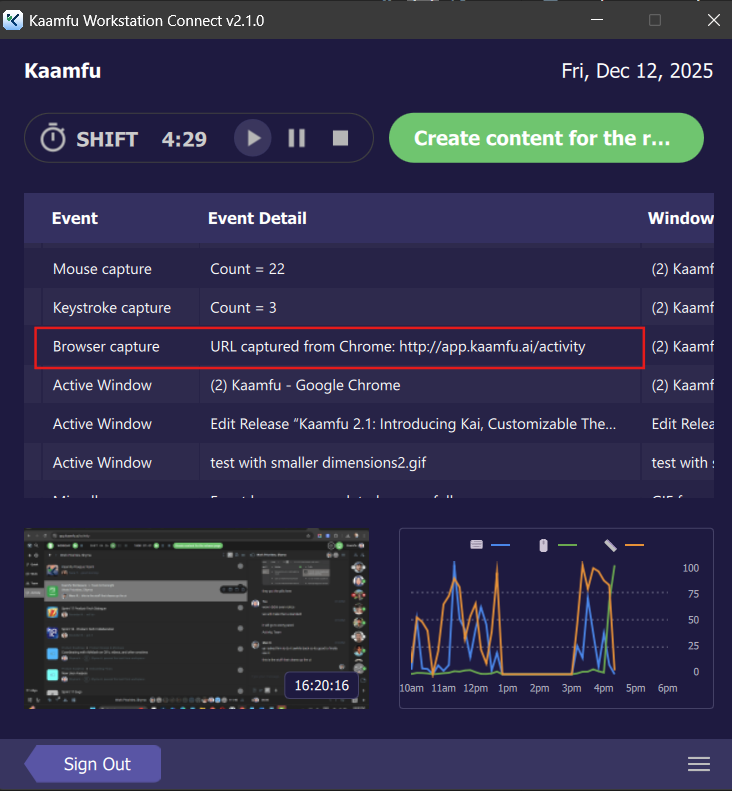
This makes it easier to understand browser-based work without guessing which page was open.
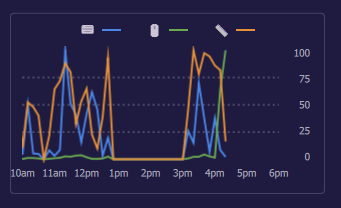
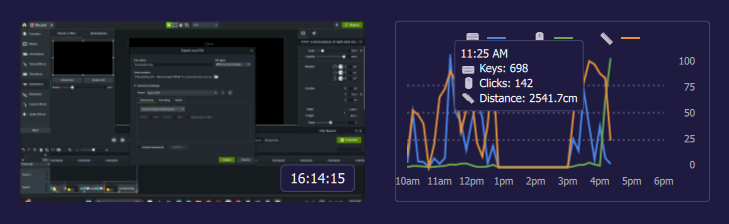
Live Activity Graph in Workstation Connect
Workstation Connect now includes a live activity graph alongside the event table. The graph visualizes activity over time, with time on the horizontal axis and activity counts on the vertical axis. When you hover over the graph, a tooltip follows your cursor and shows the timestamp, keystroke count, mouse click count, and mouse travel distance—making activity patterns easier to read at a glance.